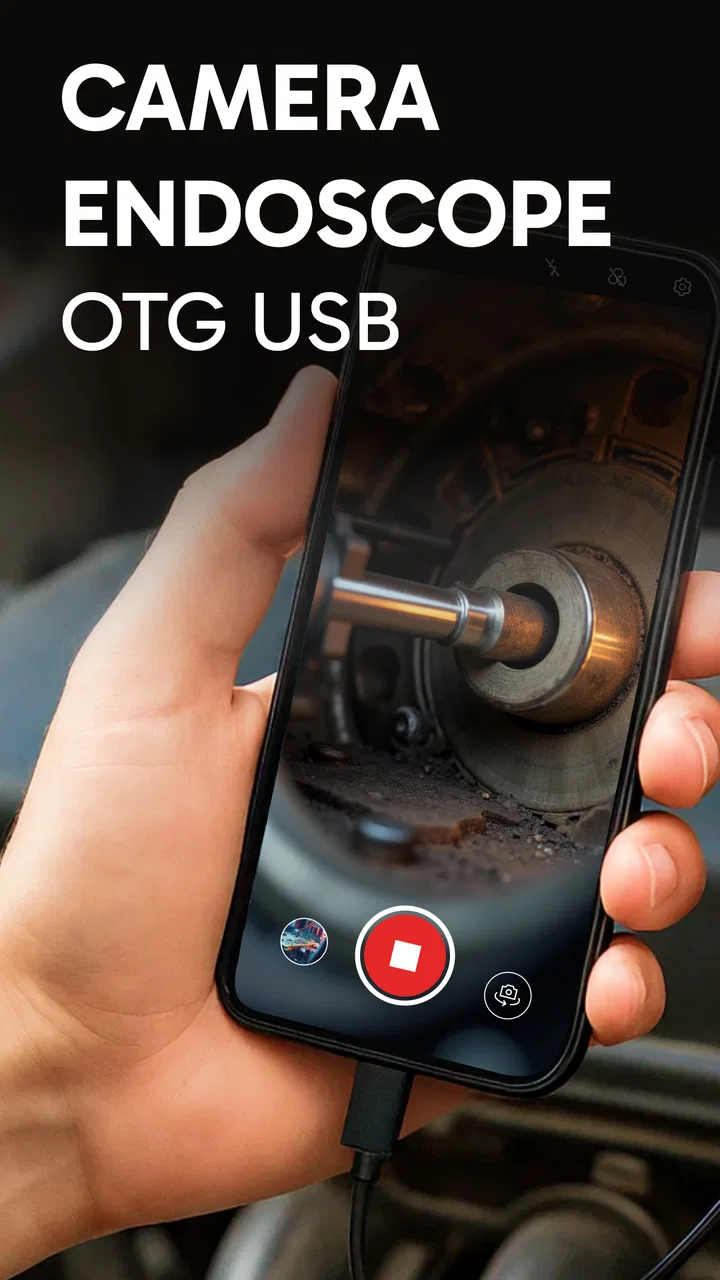
Camera endoscope / OTG USB
- 3.3
- Rating
- 1.00M
- Installs
- Free
- Price
 Analysis by App-foxy
When I tested Camera endoscope / OTG USB, I approached it as a practical connection tool rather than a polished camera replacement. Its purpose is simple: help an Android phone work with an endoscope camera or another compatible device through the phone’s connection hardware. That narrow goal is important, because the app makes the most sense when you already own the right accessory and need a way to view what it sees.
The app sits in the Libraries & Demo section and comes from One Music Player. It is free to install, rated for Everyone, and supports devices running Android 5.0 or later. The current release is version 46.0. Its store summary describes an endoscope camera app for connecting an endoscope cam or another device, while the shorter description calls it “Camera endoscope.” Those labels tell you the basic idea, but not whether the experience will be convenient in your particular setup.
My overall impression is cautious but useful: this can be a handy bridge between a phone and a small inspection camera, yet it is not the sort of app I would recommend blindly to everyone. The quality of the result depends heavily on the camera, adapter, Android device, and connection method. The application may be the missing piece in a simple inspection workflow, but it cannot compensate for incompatible hardware.
You May Also Like

 Blood Strike: 2.5 Anniversary
Blood Strike’s Loadouts Turn Every Drop Into a Tactical Gamble
A close look at Blood Strike’s custom loadouts: how fast access to signature weapons reshapes its battle royale rhythm, rewards preparation, and narrows the gap between fights.

 Pandora - Music & Podcasts
Pandora’s Music Is Easy to Start, but Harder to Recover
Pandora’s strength is its low-effort path from a seed to a station. Its weak spot is how much confidence it asks you to place in connection, setup, and quiet recovery.

 8 Ball Pool
 Is Built on Rivalries, Rematches, and Routine
A close look at the rivalries, rematches, shared routines, and unanswered safety questions that turn a quick pool match into a persistent mobile community.

 Samsung Music
’s Quiet Strength Is Playing What You Already Own
Its reach comes less from spectacle than from dependable access to a personal library. That simplicity is both the app’s strongest retention engine and its ceiling.

 AccuWeather: Weather Radar
AccuWeather Review: A Quick, Clear Forecast for Everyday Decisions
For everyday plans, the best forecast is the one you can understand quickly. AccuWeather makes rain timing, radar, and local conditions easy to act on, with a few trade-offs.

 Hill Climb Racing
Why Hill Climb Racing Still Turns Crashes Into One More Run
A tiny car, a bumpy hill and one more upgrade: Hill Climb Racing keeps resurfacing because its simple chaos makes every near-miss feel personal.
More From Our News Desk



What the app is really useful for
The most obvious use is looking into places that are difficult to inspect directly. I can imagine using it to check behind a cabinet, look inside a narrow pipe, inspect a gap beneath an appliance, or see whether something has fallen into an inaccessible space. In these situations, the phone is mainly acting as a screen for the endoscope rather than as the camera itself.
That distinction helps set expectations. A normal phone camera app is designed around the phone’s built-in lens, autofocus, exposure controls, and gallery workflow. Camera endoscope / OTG USB is aimed at an external camera feed. If you install it hoping to turn the phone into a better standalone camera, you are looking at the wrong kind of tool.
I also see a place for it in occasional household maintenance. Someone who keeps a small inspection camera in a drawer may not need a full professional monitoring system. Opening an app, attaching the accessory, and checking a hidden area can be faster than dismantling furniture or calling for help. For a quick visual check, that simplicity is the main attraction.
There is a useful trade-off here. A dedicated inspection monitor may offer a more predictable setup, while this app lets you use hardware you already carry. The phone gives you a familiar display and potentially makes the image easier to share or examine, but the connection is less guaranteed because several pieces have to cooperate.
Compatibility matters more than the download
The first question I would ask before installing is not whether the app is free. It is whether the phone can communicate with the endoscope or USB device. The app’s purpose involves an external connection, so the physical accessory and the phone’s support for that connection are central to the experience.
This is where many users may feel disappointed. A compatible-looking plug does not automatically mean that every phone will display the camera feed. The connector, adapter, camera hardware, and Android support all matter. If the accessory needs a particular connection mode, the app cannot create that capability by itself.
My practical advice is to treat the first launch as a compatibility test. Connect the camera before starting a serious inspection, keep the phone unlocked, and give yourself enough light and space to troubleshoot. Testing at home is much better than discovering a problem while trying to inspect a blocked drain or a hard-to-reach cable.
Another small but important tip is to avoid judging the app from a single failed attempt. A loose adapter, an unsuitable cable, or an accessory that is not receiving enough power can look like an application failure. I would check the physical connection, reconnect it, and try the same camera with another compatible setup if possible before deciding that the app is unusable.
A realistic everyday workflow
Imagine finding a strange object under a washing machine. Instead of moving the appliance immediately, I would attach the endoscope, connect it to the phone, open the app, and guide the camera into the gap. The useful result is not a cinematic image; it is a quick answer to a practical question: what is there, and can I reach it safely?
For that kind of job, I would keep the phone close enough to watch the display while moving the cable slowly. Sudden movements make a small camera harder to control, and the image can become confusing when the lens rotates. A second person can help guide the cable, but for simple checks I would rather use a stable surface and move in short sections.
This workflow also shows why the app’s value is situational. If the camera connects immediately, the phone becomes a convenient monitor. If the connection is unreliable, the same task can become more frustrating than simply using a flashlight and a mirror. The app is best for users who understand that the accessory is part of the system.
What I would check before trusting the image
Even when a picture appears on screen, I would not immediately assume that it represents the scene accurately. Endoscope cameras often sit at awkward angles, and a small lens can make depth and direction difficult to judge. I would rotate the cable slowly, identify a fixed reference point, and avoid making decisions based on one confusing frame.
This matters for safety. I would not use a phone-and-endoscope combination as the sole basis for working around live electrical equipment, hot machinery, pressurized systems, or anything that could cause injury. The app can help me inspect a space visually, but it does not turn a casual inspection into a professional diagnosis.
A useful habit is to separate “seeing something” from “knowing what it means.” The application may show a view inside a narrow space, but interpreting that view still requires judgment. For a loose object or visible blockage, the image may be enough. For structural damage or a hazardous fault, I would seek a more appropriate inspection method.
Trust begins with visible choices
For an app that connects to an external camera, I pay attention to what happens when the connection starts. I want the phone to make it clear when the camera is active, when the accessory is detected, and when the session has ended. Those visible moments matter because a user should know when an external device is being used.
I also prefer to connect the accessory only when I need it. That is a simple user-controlled habit: keep the camera disconnected during ordinary phone use, attach it for the inspection, and remove it afterward. This does not change the app’s technical behavior, but it gives me a clearer boundary around the session.
The app is free to install, although in-app purchases range from under a dollar to nearly a hundred dollars per item. That wide range makes me more careful before confirming anything inside the application. I would look at the purchase screen, read what is being offered, and avoid tapping through quickly just because I am trying to solve a connection problem.
In my view, a free download is not the same as a completely cost-free experience. The sensible approach is to treat optional purchase prompts as a separate decision from testing the basic connection. If the app already does what I need, I would not pay simply because a premium-looking option appears during setup.
Data-sensitive moments during use
An inspection session can expose more than a user expects. The camera might point at personal documents, storage areas, rooms, work equipment, or other people. Even if I am only checking a pipe, the phone screen may show surrounding details. I would therefore avoid recording or sharing a view until I have checked what is visible in the frame.
This is especially relevant when the phone is used around customers, colleagues, tenants, or family members. I would ask permission before inspecting a private area and would avoid sending images through a messaging service unless the recipient genuinely needs them. The app’s practical purpose does not remove the ordinary privacy responsibilities that come with using a camera.
I would also be careful with screenshots and saved images. A quick inspection can create a record that remains on the phone longer than intended. After finishing, I would review the gallery and remove anything unnecessary. That is a useful step for anyone checking bedrooms, offices, storage spaces, or equipment that contains confidential information.
When I use a tool that depends on a physical camera, I prefer to keep the session short and deliberate. Connect, inspect, make the decision I need, and disconnect. That approach reduces accidental exposure and makes it easier to remember what the camera was showing.
Controls and the limits of what I can judge
The app’s visible purpose is clear, but trust should not be based on a vague assumption that every technical detail is harmless. I would review the permission prompts shown on my own phone and consider whether each one makes sense for the task. If a prompt appears unrelated to connecting or viewing the external camera, I would pause rather than approve it automatically.
Permission behavior can vary with Android versions and device manufacturers, so I would make the decision on the actual phone being used. Android’s settings also give me a place to revisit permissions after installation. I like that kind of user agency: approve only what seems necessary, then check the settings again if the app behaves differently from what I expected.
I would not treat the app’s category or its large user base as proof of a particular data practice. The app has more than a million installs, around an average rating of 3.4, and roughly eight and a half thousand ratings, with hundreds of written reviews. Those figures show that it has been tried by many people, but they do not answer every question about permissions, storage, or account handling.
That is why I would read the app’s own visible notices and the Android permission screen instead of relying on popularity. A tool can be widely installed and still be unsuitable for a privacy-sensitive workplace. Conversely, a modest rating may reflect hardware compatibility problems rather than a problem with every user’s experience.
Who should use it, and who should skip it
I would recommend trying Camera endoscope / OTG USB to someone who already owns a compatible endoscope camera and wants to use an Android phone as the display. It is also a reasonable experiment for a careful DIY user who understands that the first job is confirming the connection, not expecting a full professional inspection suite.
I would be less enthusiastic for someone who needs guaranteed operation at a job site. In that case, a dedicated monitor or a camera system known to work with the exact phone model may be a better investment. Predictability matters more than saving the cost of a separate display when a failed connection could delay important work.
I would also skip it if my main goal were ordinary photography, video calls, or a more advanced phone-camera workflow. The app’s identity is tied to external inspection hardware, so a standard camera application will usually be a better match for everyday images.
People who dislike troubleshooting should think carefully before choosing this route. The application may be easy once the hardware is compatible, but the setup can involve more variables than opening a normal camera. If I wanted a one-button experience, I would choose a purpose-built inspection kit instead.
How it compares with familiar alternatives
Compared with the phone’s built-in camera, this app offers a different perspective rather than better general image quality. The built-in camera is more convenient for normal scenes and usually fits naturally into the phone’s photo tools. An external endoscope, however, can reach spaces the phone itself cannot.
Compared with a dedicated endoscope viewer, the phone-based approach can be cheaper and more flexible if I already own the accessory. The downside is that compatibility becomes my responsibility. A dedicated viewer is often easier to understand because its screen and camera are designed as one package, while this app depends on the relationship between separate hardware pieces.
Compared with generic USB camera utilities, this app is more directly aligned with an endoscope-style use case. That focus is helpful when I want to inspect a narrow or hidden area, but it may be limiting if I want a broad set of controls for unrelated USB devices. I would choose based on the actual accessory and task, not on the word “USB” alone.
The rating of 3.4 suggests a mixed experience among users, and I think that is believable for an accessory-dependent app. A person with a well-matched camera may find it useful, while another person with a different phone or adapter may encounter problems before seeing any image. I would interpret the rating as a reason to test carefully, not as an automatic rejection.
Small habits that make the experience better
My first habit would be to test the complete setup before relying on it. I would connect the camera, confirm that the image appears, move the lens through a few angles, and disconnect everything cleanly. This catches problems with the accessory before I am in a cramped or urgent situation.
My second habit would be to use the app in a controlled environment before inspecting anything sensitive. A blank wall or an empty box can help me understand the camera’s orientation without accidentally showing private material. It also gives me a chance to learn how much cable movement is needed to steer the view.
My third habit would be to keep a backup plan. For a household task, that might mean having a flashlight, mirror, or another way to access the area. For work, it could mean bringing the dedicated inspection device that I know is reliable. This is not a criticism unique to the app; it is a sensible response to any setup involving external hardware.
I would also avoid leaving the accessory connected after the inspection. Disconnecting it makes the end of the session obvious and prevents me from accidentally opening the app later while the camera is still pointed at something private. That simple physical boundary is more useful than assuming I will remember every background behavior.
My cautious verdict
Camera endoscope / OTG USB is a focused utility for a focused problem. In my experience, its appeal comes from turning an Android phone into a convenient viewing screen for an endoscope camera or compatible device. For occasional household inspection, that can be genuinely practical, especially when I already own the hardware.
I would not describe it as a universal solution. The phone, adapter, camera, Android version, and connection behavior all influence the result. The app’s free installation makes testing accessible, but the possible in-app purchases mean I would examine every offer carefully before spending anything. I would also review permission prompts and Android settings on the actual device rather than assuming that popularity answers privacy questions.
One Music Player’s app has a clear place in the Libraries & Demo category, but its value depends on matching expectations to the job. The best reason to try it is a compatible endoscope already in your hands, not curiosity about turning your phone into a professional inspection system. If that describes you, a careful test may be worthwhile. If you need dependable, immediate operation with no hardware troubleshooting, I would choose a dedicated endoscope kit instead.
My final recommendation is therefore conditional: install it when the accessory and phone are likely to work together, keep the first session private and low-risk, and treat the app as a viewing aid rather than an expert diagnostic instrument. Used with those limits in mind, it can solve a surprisingly useful everyday problem without demanding a separate screen.
FAQs for Camera endoscope / OTG USB
01What devices are compatible with the Camera Endoscope / OTG USB app?
The Camera Endoscope / OTG USB app is compatible with most Android devices that support OTG (On-The-Go) functionality. Before downloading, ensure your device can connect with external USB devices. Typically, this includes smartphones and tablets running Android 4.4 and above. iOS devices are generally not supported due to hardware limitations.
02How do I connect the endoscope camera to my smartphone?
To connect the endoscope camera to your smartphone, ensure your device supports OTG. Use an OTG adapter if necessary and plug the camera into the USB port. Open the app, and if prompted, allow necessary permissions. The app should automatically detect the camera, allowing you to start using it immediately.
03What features does the Camera Endoscope / OTG USB app offer?
The Camera Endoscope / OTG USB app offers features such as real-time video streaming, image capture, and video recording directly from the endoscope. It includes adjustable resolution settings, a flashlight control for improved visibility, and options to save and share captured media. These features make it versatile for various inspection tasks.
04Are there any limitations or issues with the Camera Endoscope / OTG USB app?
Some users may experience compatibility issues with certain devices, especially if OTG support is not fully functional. Additionally, image quality may vary depending on the endoscope camera's specifications. It's important to check device compatibility and read user reviews to ensure the app meets your needs before downloading.
05Is the Camera Endoscope / OTG USB app safe to use?
Yes, the Camera Endoscope / OTG USB app is generally safe to use. However, it requires access to certain permissions such as storage and camera to function correctly. Always download the app from reputable sources like Google Play Store to avoid security risks. Reading user reviews can also provide insights into the app's reliability and safety.
Pros
- Easy to connect with OTG support.
- High-resolution image capturing.
- Adjustable LED lighting.
- Compatible with various devices.
- User-friendly interface.
Cons
- Limited app features.
- Occasional connectivity issues.
- Some devices may need adapters.
- Battery drain concerns.
- Requires external storage for videos.

Camera endoscope / OTG USB
Gallery